Interface Overview
The communication interface of Talking Eyes is engineered around the core principles of "large touch targets, gaze-first accessibility, and minimal navigational friction". Primary operations in the communication area can be performed via gaze dwell or direct touch. Detailed configuration views are designed for family members or caregivers using standard touch controls.
Top Bar: Selected Phrases & Device Status
- Assembled words and phrases are displayed as colored blocks across the top bar in the exact order they will be vocalized.
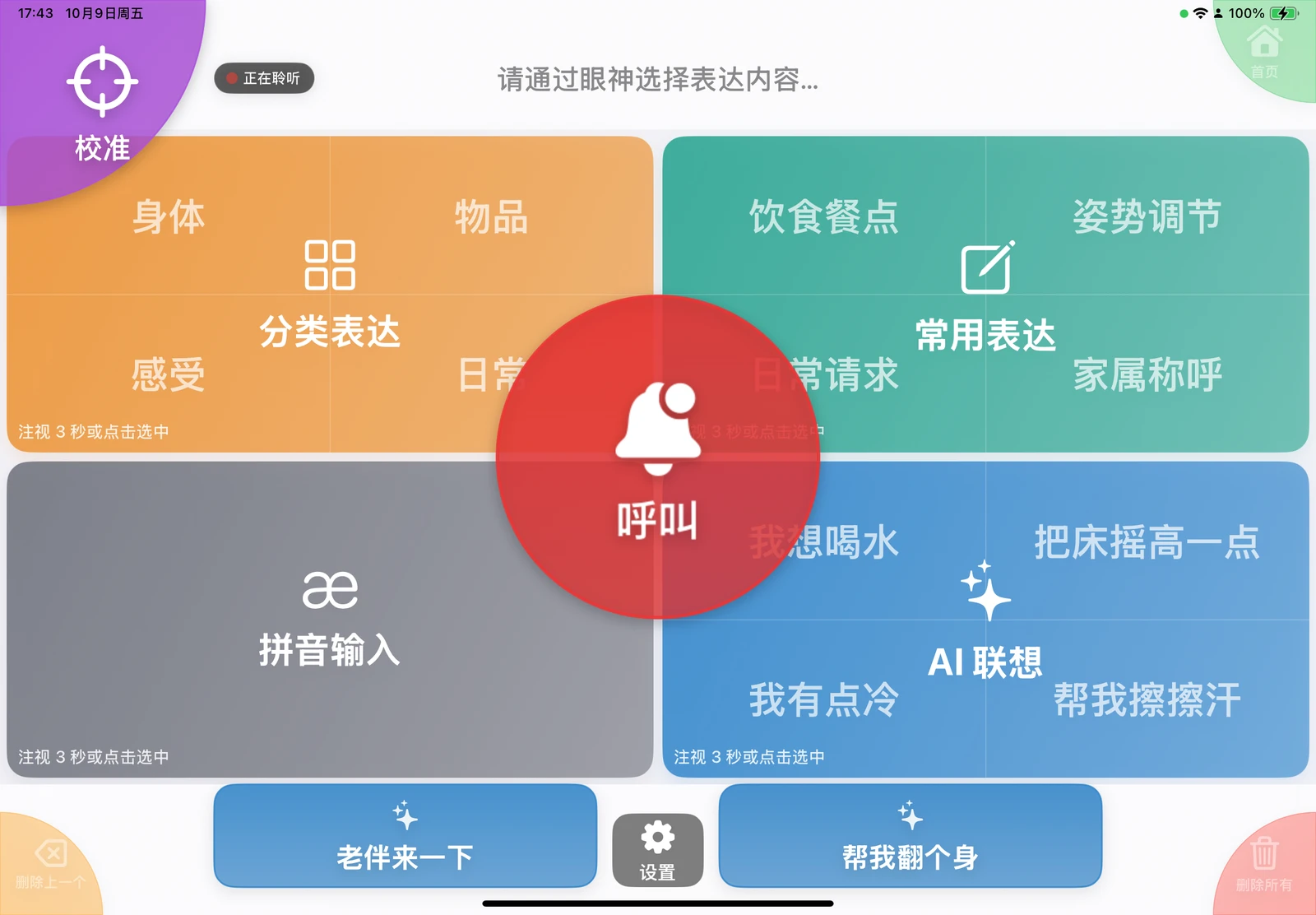
- When caregiver voice listening is enabled, an active listening indicator appears in the top bar.
- The top-right area alerts you to permission notices, low audio volume, or critical battery status. Tapping a permission alert navigates directly to "Device Status".
Center: Four-Quadrant Selection Area
| Position | Home Quadrant | Purpose |
|---|---|---|
| Top-Left | Categorized Expressions | Up to 64 editable phrases, with Body, Objects, Sensations, and Daily life as defaults |
| Top-Right | Frequent Phrases | Up to 16 editable everyday phrases |
| Bottom-Left | Pinyin Input | Hierarchical input via initials and finals for words not found in presets |
| Bottom-Right | AI Suggestions / Recents | Preloaded AI suggestions when enabled with quota; otherwise displays on-device recent phrases |
Each quadrant displays a preview of its four sub-level items. Upon selection, the chosen quadrant smoothly expands full-screen to reveal the next level of options.
Center Circle: Speak or Call
- When text is present in the top bar, the center circle functions as the "Speak" button.
- When the screen is empty and the Caregiver Call option is enabled, the center circle displays a prominent red "Call" button.
- Fixating gaze on the button fills a progress ring; tapping it activates the action immediately.
Bottom Bar: AI Quick Predictions & Settings
When AI is active, two quick prediction buttons appear at the bottom-left and bottom-right corners. When inside preset categories or Pinyin screens, predictions dynamically reflect the current category or phonetic branch. The "Settings" button appears exclusively at the bottom center of the home screen.
Four-Corner Navigation Shortcuts
| Corner | Function |
|---|---|
| Top-Left | "Calibrate" on home screen; "Back" on sub-screens |
| Top-Right | Return directly to "Home" from any sub-screen |
| Bottom-Left | Delete last selected item (Backspace) |
| Bottom-Right | Clear all selected items |
Currently available corner buttons expand in size for easy gaze fixation, while inactive buttons appear smaller and semi-transparent.